You exported a video at what you think are the right settings. The editor said "8 Mbps, H.264, 30 fps". But the upload looks soft, or a platform rejects the file, and you're not sure what's actually inside it.
The quickest way to find out is ffprobe, the inspection tool that ships with FFmpeg. It doesn't change your file; it just reads it and reports. The FFmpeg documentation describes it as a tool that "gathers information from multimedia streams and prints it in human- and machine-readable fashion."
Every command below was run on a real file with ffprobe 8.1.2, and the output is pasted exactly as it came out.
Before you start: get ffprobe
ffprobe is installed alongside FFmpeg. If ffmpeg -version works in your terminal, ffprobe -version almost certainly does too:
$ ffprobe -version | head -1
ffprobe version 8.1.2 Copyright (c) 2007-2026 the FFmpeg developers
Make a test file (optional)
If you want to follow along with exactly the same numbers, this command generates a 10-second 1080p test video with a tone, encoded at about 4 Mbps:
ffmpeg -f lavfi -i testsrc2=size=1920x1080:rate=30000/1001 \
  -f lavfi -i sine=frequency=440:sample_rate=48000 -t 10 \
  -c:v libx264 -b:v 4M -pix_fmt yuv420p -c:a aac -b:a 128k sample.mp4
Otherwise, swap sample.mp4 for your own file in every command.
The one-glance view
Run ffprobe with just the file name and read the last few lines:
$ ffprobe -hide_banner sample.mp4
  Duration: 00:00:10.01, start: 0.000000, bitrate: 4177 kb/s
  Stream #0:0[0x1](und): Video: h264 (High) (avc1 / 0x31637661), yuv420p(progressive), 1920x1080 [SAR 1:1 DAR 16:9], 4040 kb/s, 29.97 fps, 29.97 tbr, 30k tbn (default)
  Stream #0:1[0x2](und): Audio: aac (LC) (mp4a / 0x6134706D), 48000 Hz, mono, fltp, 127 kb/s (default)
(The full output also shows metadata lines; we've trimmed those here.)
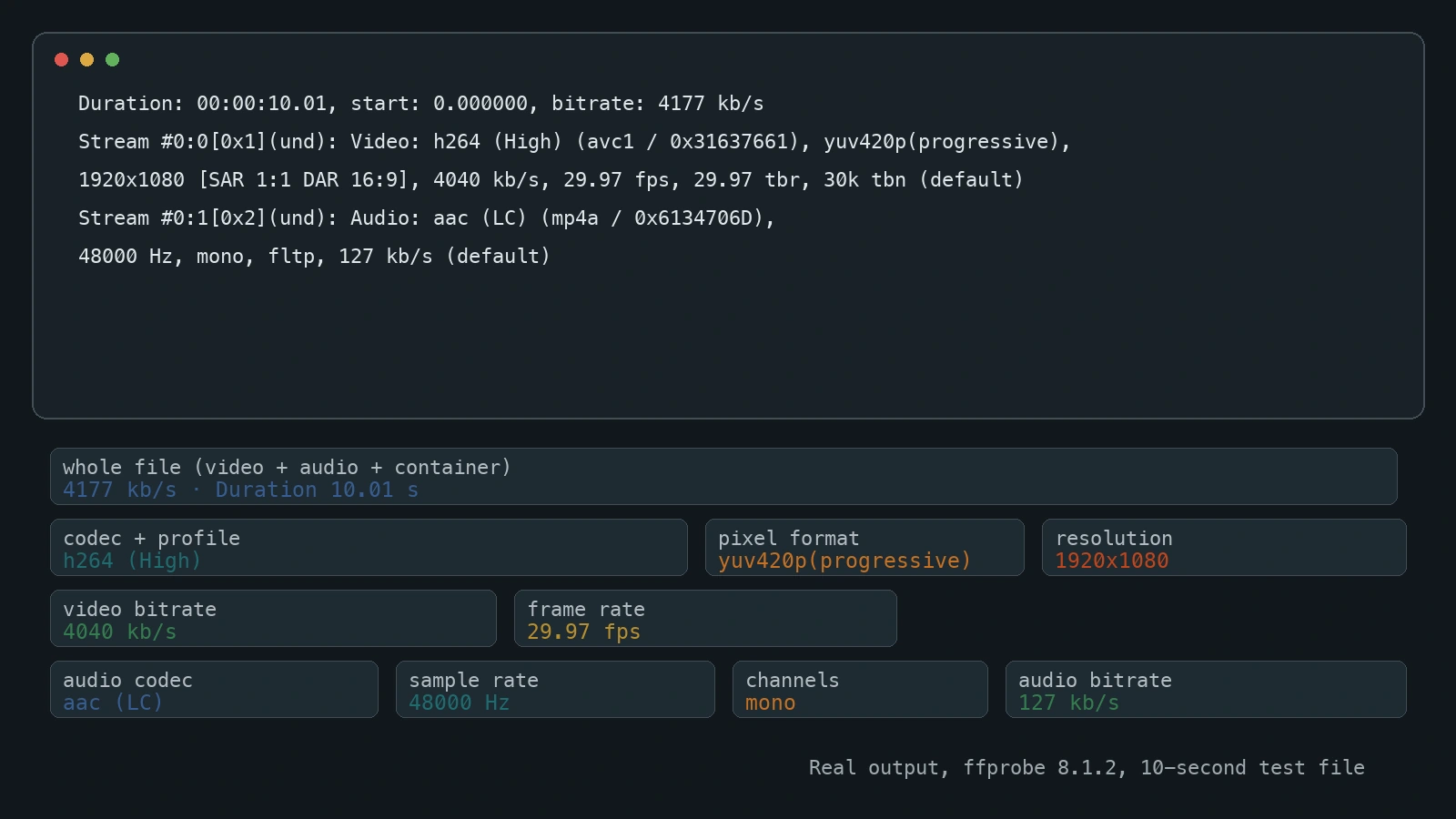
Reading that from left to right:
- Duration 10.01 s, bitrate 4177 kb/s: the whole file, video plus audio plus container overhead.
- Video: h264 (High): the codec is H.264, High profile.
- yuv420p: the pixel format.
- 1920x1080: the resolution.
- 4040 kb/s: the video stream's own bitrate.
- 29.97 fps: the frame rate.
- Audio: aac … 48000 Hz, mono … 127 kb/s: AAC audio, 48 kHz, one channel, about 127 kbps.
That's often all you need. But the summary is meant for people, not scripts, and it hides some detail. The next commands pull out exactly the fields you want.
Check the codec, resolution and frame rate
The -select_streams option picks a stream (v:0 is the first video stream), and -show_entries lists only the fields you ask for:
$ ffprobe -v error -select_streams v:0 \
  -show_entries stream=codec_name,profile,width,height,pix_fmt,r_frame_rate,avg_frame_rate,bit_rate \
  -of default=noprint_wrappers=1 sample.mp4
codec_name=h264
profile=High
width=1920
height=1080
pix_fmt=yuv420p
r_frame_rate=30000/1001
avg_frame_rate=30000/1001
bit_rate=4040641
A few things to notice:
-v errorhides the banner and log noise, so you only get the answer.- Frame rates are fractions.
30000/1001is 29.97 fps, the usual "30 fps" for video. A plain 30 fps file would show30/1. r_frame_rateandavg_frame_rate. Here they match. If you see them differ on one of your files, look more closely: phone recordings and screen captures sometimes don't run at one constant rate.bit_rateis in bits per second. 4040641 is about 4.04 Mbps.
Count the frames to double-check the frame rate
If you don't trust the header, have ffprobe decode and count the actual frames. This decodes the whole video stream, so it's slower on long videos:
$ ffprobe -v error -select_streams v:0 -count_frames \
  -show_entries stream=nb_read_frames -of csv=p=0 sample.mp4
300
300 frames in 10.01 seconds is 29.97 fps, matching the header.
Check the bitrate: file vs stream
There are two bitrates worth knowing, and people mix them up.
Overall (format) bitrate
$ ffprobe -v error -show_entries format=duration,size,bit_rate \
  -of default=noprint_wrappers=1 sample.mp4
duration=10.010000
size=5227344
bit_rate=4177697
That's the whole file: 5,227,344 bytes over 10.01 seconds, about 4.18 Mbps. It includes audio and container overhead.
Video stream bitrate
The bit_rate field from the stream query above (4,040,641, about 4.04 Mbps) is the video alone. This is the number to compare with a platform's video bitrate recommendation.
Audio
$ ffprobe -v error -select_streams a:0 \
  -show_entries stream=codec_name,sample_rate,channels,bit_rate \
  -of default=noprint_wrappers=1 sample.mp4
codec_name=aac
sample_rate=48000
channels=1
bit_rate=127280
When the bitrate says N/A (MKV and WebM)
Copy the same video into an MKV container without re-encoding and ask for the stream bitrate again:
$ ffprobe -v error -select_streams v:0 -show_entries stream=codec_name,bit_rate \
  -of default=noprint_wrappers=1 sample.mkv
codec_name=h264
bit_rate=N/A
Matroska files often don't store a per-stream bitrate, so ffprobe has nothing to report. The format-level number is still there:
$ ffprobe -v error -show_entries format=bit_rate -of default=noprint_wrappers=1 sample.mkv
bit_rate=4164515
To get the real video bitrate, add up the size of every video packet and divide by the duration. On macOS or Linux:
$ ffprobe -v error -select_streams v:0 -show_entries packet=size -of csv=p=0 sample.mkv \
  | awk '{s+=$1} END {print s, s*8/10.01}'
5055853 4.04064e+06
That's 5,055,853 bytes of video, or about 4.04 Mbps, the same as the MP4's stream figure, as it should be: the video data didn't change, only the container did. (Replace 10.01 with your file's duration from the format query.)
Get everything as JSON for scripts
If you're checking files in bulk, ask for JSON with -of json:
$ ffprobe -v error -show_entries format=duration,size,bit_rate:stream=codec_type,codec_name \
  -of json sample.mp4
{
    "programs": [

    ],
    "stream_groups": [

    ],
    "streams": [
        {
            "codec_name": "h264",
            "codec_type": "video"
        },
        {
            "codec_name": "aac",
            "codec_type": "audio"
        }
    ],
    "format": {
        "duration": "10.010000",
        "size": "5227344",
        "bit_rate": "4177697"
    }
}
The FFmpeg docs list other writers too, including csv, flat, ini and xml.
Compare your numbers with the platform's target
Now you have real numbers instead of what the export dialog promised. For YouTube, our bitrate calculator page includes YouTube's recommended upload bitrates, copied from YouTube Help with the date it was checked. Line up three things:
- Resolution (
width×height) - Frame rate (
avg_frame_rate): YouTube's table splits 24–30 fps from 48–60 fps - Video stream bitrate (
bit_ratefrom the stream query, or the packet sum for MKV)
Our test file, at 1080p, 29.97 fps and about 4.04 Mbps of video, comes in under the 8 Mbps that table lists for 1080p at 24–30 fps (the same figure is on YouTube Help's recommended upload encoding settings page). If a real upload looked like that, re-exporting at a higher bitrate would be the first thing to try.
To see how a higher bitrate changes file size before you export, use the video file size calculator. For ready-made FFmpeg export commands, see FFmpeg presets, and for the rest of the upload checklist, our YouTube upload guide.
Quick reference
| What you want | Command |
|---|---|
| Codec, resolution, frame rate, video bitrate | ffprobe -v error -select_streams v:0 -show_entries stream=codec_name,width,height,avg_frame_rate,bit_rate -of default=noprint_wrappers=1 FILE |
| Whole-file duration, size, bitrate | ffprobe -v error -show_entries format=duration,size,bit_rate -of default=noprint_wrappers=1 FILE |
| Audio codec, sample rate, channels, bitrate | ffprobe -v error -select_streams a:0 -show_entries stream=codec_name,sample_rate,channels,bit_rate -of default=noprint_wrappers=1 FILE |
| Count video frames | ffprobe -v error -select_streams v:0 -count_frames -show_entries stream=nb_read_frames -of csv=p=0 FILE |
| Video bitrate when it shows N/A | sum packet=size with awk, × 8 ÷ duration |
FAQ
How do I check a video's bitrate with ffprobe?
For the video stream: ffprobe -v error -select_streams v:0 -show_entries stream=bit_rate -of default=noprint_wrappers=1 FILE. For the whole file, use format=bit_rate instead. Both are in bits per second.
Why does ffprobe show bit_rate=N/A?
Some containers, MKV and WebM in particular, often don't store a per-stream bitrate. Use the format bitrate, or add up the video packet sizes and divide by the duration.
What does 30000/1001 mean for frame rate?
It's 29.97 frames per second, written as an exact fraction.
Is the bitrate in the summary line the video bitrate?
No. The bitrate: after Duration is the whole file, including audio and container overhead. The figure inside the Video stream line is the video alone.
Does ffprobe change my file?
No. It only reads the file and prints information.
Sources
| Source | URL | Checked |
|---|---|---|
| FFmpeg documentation, ffprobe | https://ffmpeg.org/ffprobe.html | 20261026 |
| Local test run: ffprobe 8.1.2 / ffmpeg on macOS, test file generated by the command in this article | — | 20261026 |
| YouTube Help, "YouTube recommended upload encoding settings" (SDR bitrate table: 1080p, 24/25/30 fps = 8 Mbps) | https://support.google.com/youtube/answer/1722171 | 20261026 |
| YouTube recommended upload bitrates, as reproduced on trimpx.com bitrate calculator (copied from YouTube Help, checked there 20261024) | https://trimpx.com/bitrate-calculator | 20261026 |
Related tools and guides
- Plan a target bitrate: Bitrate Calculator (includes YouTube's recommended upload bitrates)
- Estimate the exported file size: Video File Size Calculator
- Copy-ready export commands: FFmpeg Encoding Presets
- Finish the upload checklist: YouTube Upload Guide