You've got a clip with wind noise, a phone conversation in the background, or music you can't use. You want the video without the sound, or with a different soundtrack. Video editors can do it, but FFmpeg can do it in a few seconds, usually without re-encoding the video at all.
Every command below was run with FFmpeg 8.1.2 on a test clip, and every output was checked with ffprobe. The clip was 1280 × 720, 30 fps, 10 seconds long, with an AAC audio track. The test audio files were tones generated by FFmpeg itself.
The two ideas you need: streams and -map
A video file usually contains separate streams: typically one video stream and one or more audio streams. FFmpeg numbers them. 0:v means "the video stream(s) of the first input", 1:a means "the audio stream(s) of the second input", and so on.
The -map option tells FFmpeg exactly which streams to put in the output. FFmpeg's documentation describes it as the option to "Create one or more streams in the output file." If you don't use -map, FFmpeg picks streams for you automatically, which isn't always what you want when there are two inputs.
The other key option is -c:v copy. FFmpeg's documentation says copy is a special value "to indicate that the stream is not to be re-encoded." Copying the video stream is fast, and the picture is untouched.
If you'd like a broader introduction to how FFmpeg handles inputs and outputs, our FFmpeg filter guide is a good starting point.
Remove the audio completely
ffmpeg -i input.mp4 -c:v copy -an no_audio.mp4
-c:v copycopies the video stream as it is.-androps the audio. FFmpeg's documentation says that as an output option it "disables audio recording i.e. automatic selection or mapping of any audio stream."
Our test: exit code 0. ffprobe showed one stream in the output, h264 video, with a duration of 10 seconds.
Another way: keep everything except audio
ffmpeg -i input.mp4 -map 0 -map -0:a -c copy no_audio.mp4
-map 0 takes every stream from the input, and -map -0:a removes the audio ones again. FFmpeg's documentation explains that "A - character before the stream identifier creates a 'negative' mapping." This version is handy when a file also has subtitle or other streams you want to keep.
Our test: exit code 0; the output contained only the video stream.
Replace the audio with a new track
Use two inputs and map the video from the first and the audio from the second:
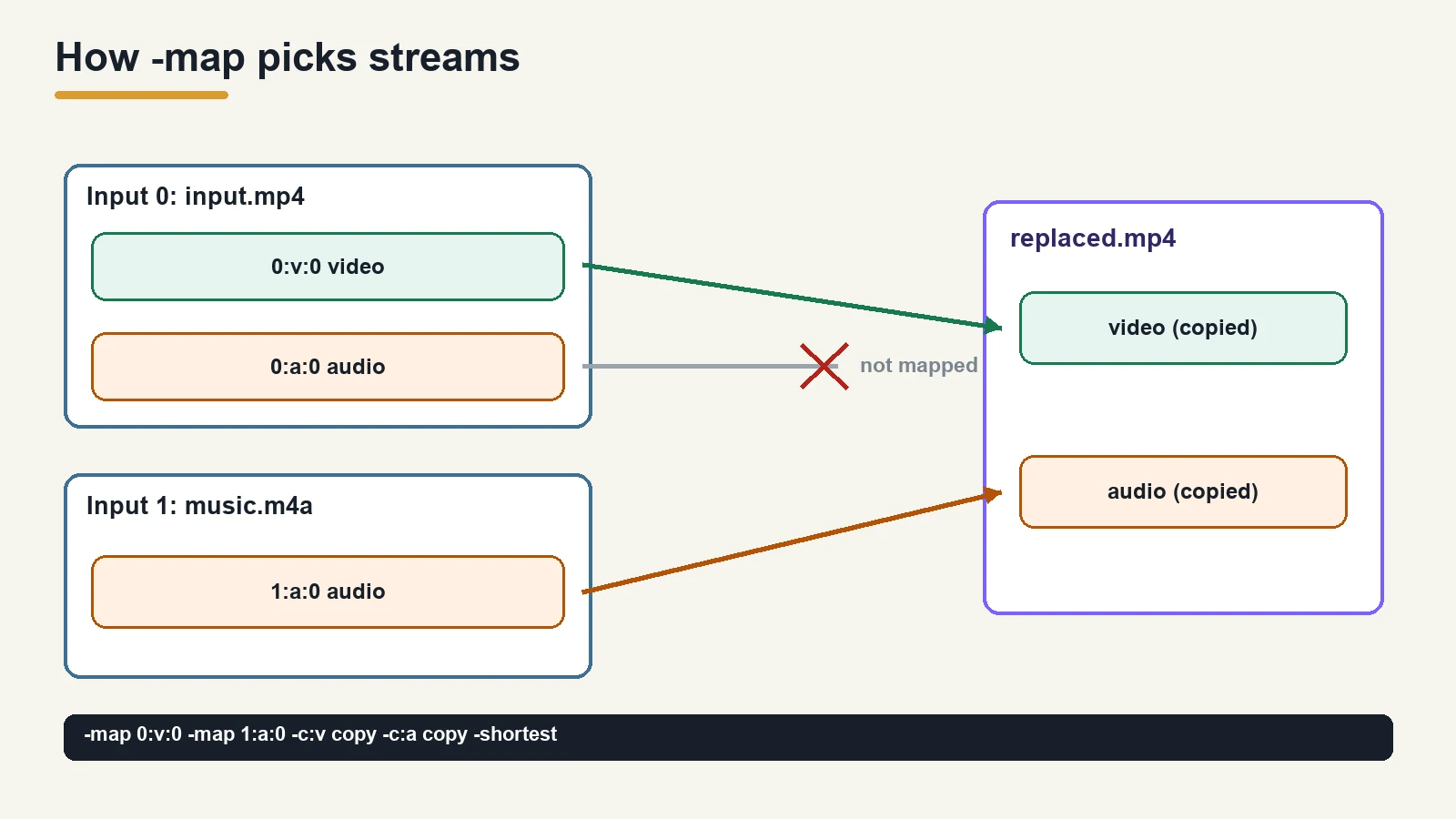
ffmpeg -i input.mp4 -i music.m4a -map 0:v:0 -map 1:a:0 -c:v copy -c:a copy -shortest replaced.mp4
-map 0:v:0: the first video stream of the first input (the video).-map 1:a:0: the first audio stream of the second input (the music).-c:v copy -c:a copy: copy both without re-encoding. In our test the music file was already AAC, so it could be copied straight into the MP4.-shortest: stop at the end of the shorter stream. FFmpeg's documentation: "Finish encoding when the shortest output stream ends."
Our test: the music was 20 seconds and the video 10. With -shortest, the output was 10 seconds long, with one h264 video stream and one AAC audio stream. Exit code 0.
If the new audio is in a different format
If your new audio is an MP3 or WAV, re-encode it to AAC as you add it, and keep copying the video:
ffmpeg -i input.mp4 -i new_audio.mp3 -map 0:v:0 -map 1:a:0 -c:v copy -c:a aac -b:a 192k replaced.mp4
Our test: with a 6-second MP3, the output had an AAC audio stream at 44.1 kHz (the MP3's own rate) and exit code 0.
What happens when the new audio is shorter?
This is where -shortest matters, and it's worth knowing what each choice does. With the same 10-second video and a 6-second MP3:
| Command | Video stream | Audio stream | Result |
|---|---|---|---|
Without -shortest | 10.0 s | 6.0 s | Full-length video; the last 4 seconds are silent |
With -shortest | 5.97 s | 6.0 s | The whole file is cut to about 6 seconds |
Choose based on what you want: keep the full video and accept the silent ending, or cut the video to the length of the audio. If you want the music to cover the whole video, use a track that's at least as long as the video.
Keep the original sound and add a second track
Sometimes you want both: the original audio and, say, a commentary or music track, as separate tracks the viewer or editor can switch between.
ffmpeg -i input.mp4 -i music.m4a -map 0:v:0 -map 0:a:0 -map 1:a:0 -c copy -shortest two_tracks.mp4
Our test: the output had one video stream and two AAC audio streams, 10 seconds long, exit code 0.
Check how your player or editor handles a second audio track before you rely on it. If you want both sounds heard together in one track, mix them instead.
Mix the original sound with music
To blend two audio sources into one track, use the amix filter. Because filtering changes the audio, it has to be re-encoded, but the video can still be copied:
ffmpeg -i input.mp4 -i music.m4a -filter_complex "[0:a][1:a]amix=inputs=2:duration=first[a]" -map 0:v:0 -map "[a]" -c:v copy -c:a aac -b:a 192k mixed.mp4
[0:a][1:a]are the two audio inputs.duration=firstends the mix with the first input. FFmpeg's filter documentation lists the choices fordurationas "longest", "shortest" and "first": "The duration of the first input."-map "[a]"puts the mixed track (labelled[a]) in the output.
Our test: one video stream and one AAC audio stream; the audio came out at 10.005 seconds, matching the 10-second video. Exit code 0.
FFmpeg's documentation also describes a weights option for amix if you want the music quieter than the original sound.
Check your result with ffprobe
After any of these commands, ffprobe shows exactly what's in the file:
ffprobe -v error -show_entries stream=index,codec_type,codec_name,duration -of compact=p=0 output.mp4
You'll see one line per stream. For a muted video, there should be a single codec_type=video line. For a replaced track, one video line and one audio line. Our guide to checking a video's bitrate, codec and frame rate with ffprobe goes into more detail.
Related tasks
- To pull the audio out of a video as its own file, see our audio extractor guide.
- If FFmpeg refuses to copy a stream into your chosen container, you may need to convert the format first: see our format conversion guide.
FAQ
How do I remove audio from a video with FFmpeg?
Run ffmpeg -i input.mp4 -c:v copy -an output.mp4. The -an option drops the audio, and -c:v copy keeps the video without re-encoding it.
How do I replace the audio in a video with FFmpeg?
Use two inputs and map the video from one and the audio from the other: ffmpeg -i input.mp4 -i music.m4a -map 0:v:0 -map 1:a:0 -c:v copy -c:a copy -shortest output.mp4. Re-encode the audio with -c:a aac if it isn't already AAC.
Does removing audio reduce video quality?
Not with -c:v copy. The video stream is copied as it is, not re-encoded.
What does -shortest do?
FFmpeg's documentation says it will "Finish encoding when the shortest output stream ends." Use it when the new audio is longer than the video, or when you want the video cut to the length of the audio.
How do I keep the original audio and add music?
Either add the music as a second audio track with an extra -map, or mix the two into one track with the amix filter. Both commands are above.
Sources
| Source | URL | Checked |
|---|---|---|
| FFmpeg Documentation, ffmpeg (options -map, -an, -c, -shortest) | https://ffmpeg.org/ffmpeg.html | 20261101 |
| FFmpeg Filters Documentation, amix | https://ffmpeg.org/ffmpeg-filters.html#amix | 20261101 |
| Command tests and ffprobe checks: our own runs (FFmpeg 8.1.2) | — | 20261101 |
Related tools and guides
- Pull the audio out as its own file: Audio Extractor Guide
- Understand the filters used here: FFmpeg Filter Guide
- Copy-ready export commands: FFmpeg Encoding Presets
- Check what your output really contains: Read a Video with ffprobe
- Convert the container first: Format Conversion Guide