Vertical video is everywhere now, but most cameras, screen recorders and editing timelines still default to horizontal 16:9. So two questions come up again and again: what settings should a vertical video have, and how do you turn horizontal footage into a vertical one without it looking squashed?
This guide covers both. The platform specs come from YouTube's own help pages. The FFmpeg commands were run and checked before we published them.
The basic shape: 9:16 at 1080 × 1920
A vertical video is usually 9:16, the same shape as a phone held upright. At full HD that's 1080 pixels wide by 1920 pixels tall.
If you're not sure what size a different ratio works out to, our aspect ratio calculator will do the maths.
What YouTube says about Shorts
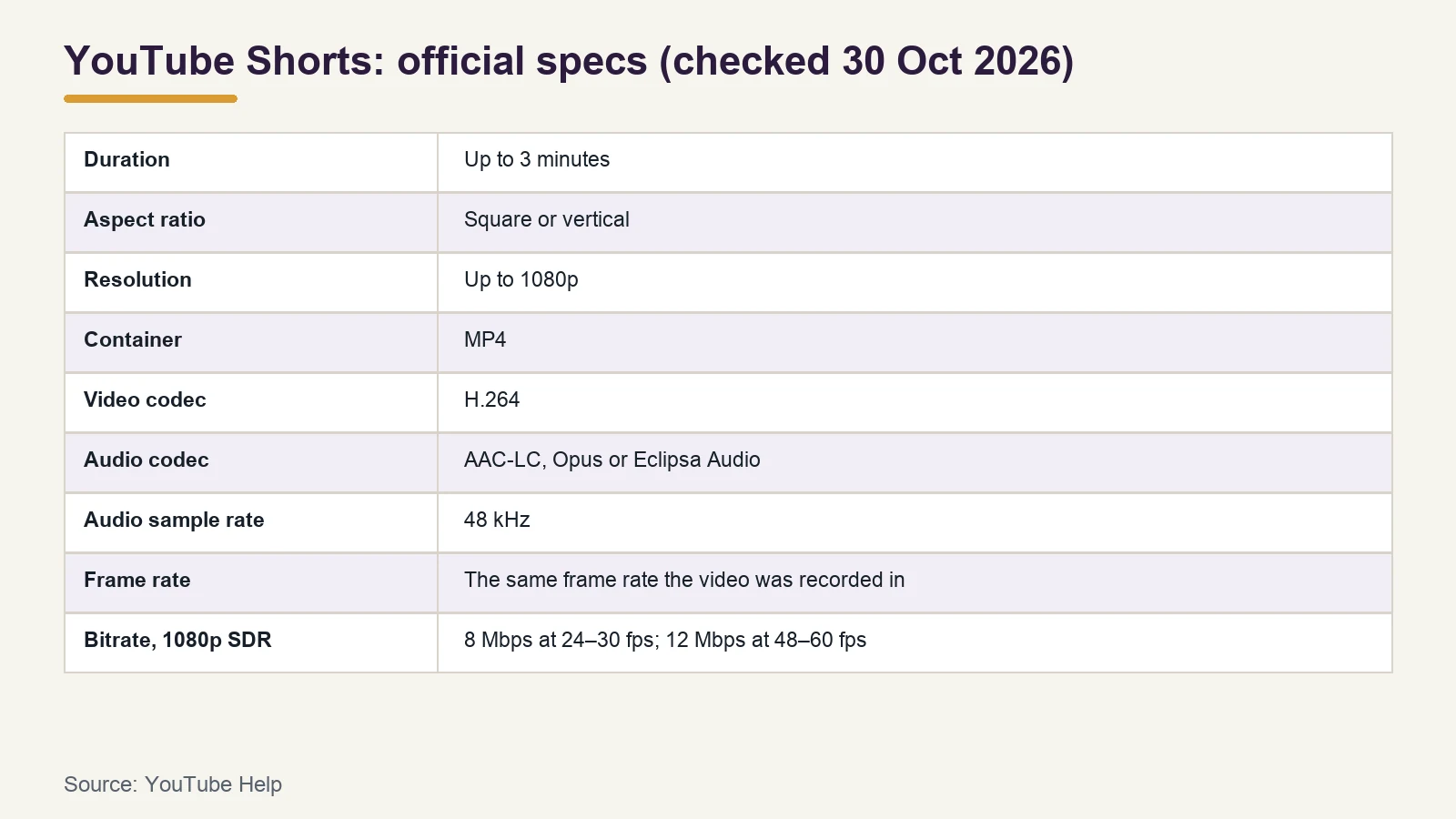
YouTube is the one platform whose official specs we could confirm for this guide (checked 30 October 2026):
- Length: YouTube's Shorts help page says you can upload Shorts "Up to 3 minutes."
- Shape: the same page says Shorts are videos "With a square or vertical aspect ratio."
- Resolution: a separate help page says: "You can upload Short videos with a maximum resolution of 1080p."
For the encoding itself, YouTube's recommended upload settings page applies to uploads in general:
| Setting | YouTube's recommendation |
|---|---|
| Container | MP4 |
| Video codec | H.264 |
| Audio codec | AAC-LC, Opus or Eclipsa Audio |
| Audio sample rate | 48 kHz |
| Frame rate | The same frame rate the video was recorded in |
| Bitrate, 1080p SDR | 8 Mbps at 24–30 fps; 12 Mbps at 48–60 fps |
For a deeper look at quality settings, see CRF vs bitrate. Our YouTube upload guide covers the rest of the upload process.
What about Instagram Reels and TikTok?
Both platforms are built around vertical video, but their limits (maximum length, file size and so on) change from time to time, and we couldn't confirm the current figures from their official help pages for this guide. Rather than repeat numbers we can't source, here's the safe approach:
- Export at 9:16, 1080 × 1920, as an MP4 with H.264 video and AAC audio. That's a widely used combination and matches YouTube's recommendations above.
- Before you upload, check the upload screen in the app and the platform's own help centre for the current length and size limits.
- Keep important text and faces away from the very top and bottom of the frame, where app buttons and captions are drawn over the video.
Turning horizontal video vertical with FFmpeg
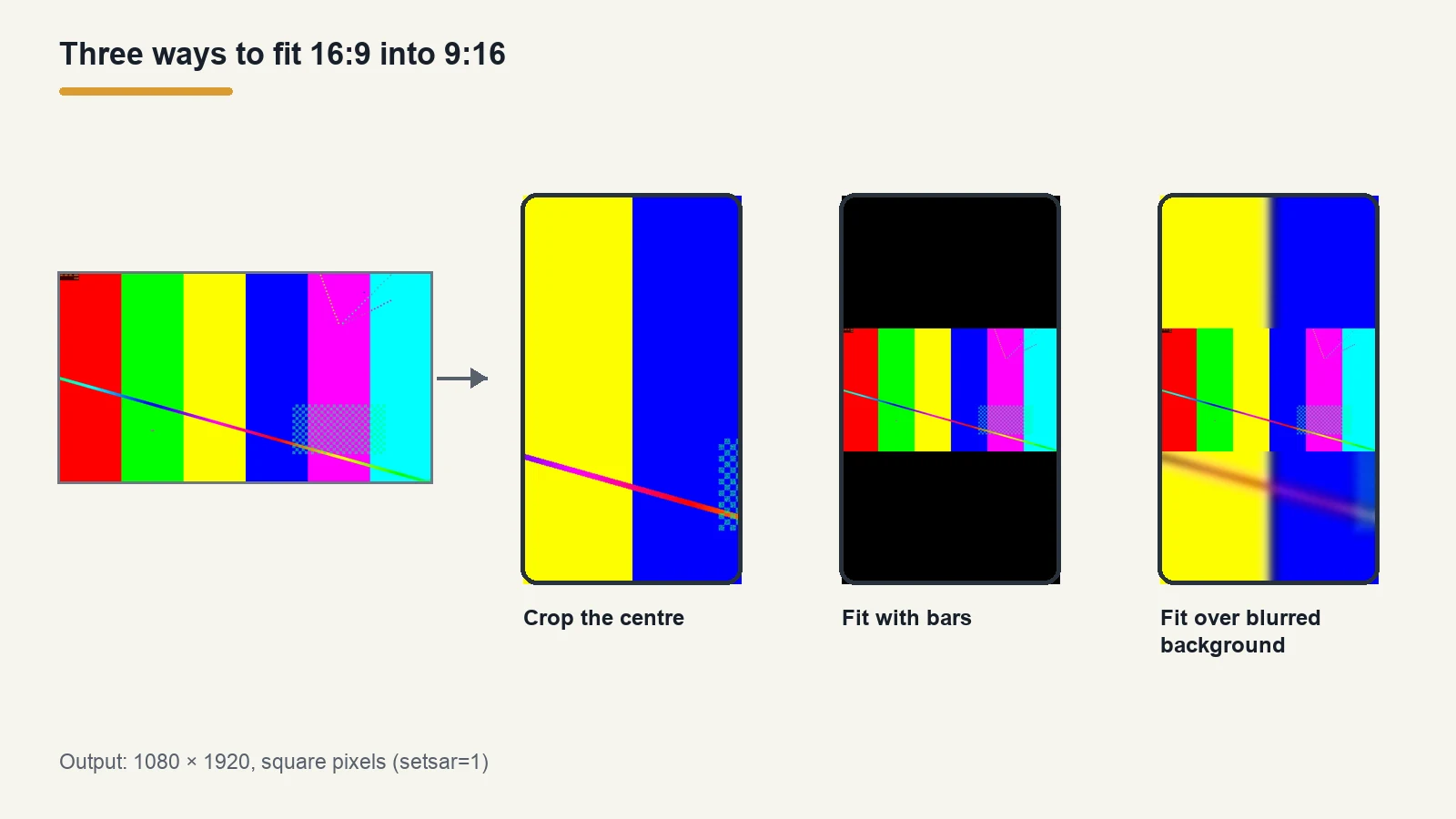
There are three common ways to fit a 16:9 clip into a 9:16 frame. We tested each command below with FFmpeg 8.1.2 on a 10-second, 1920 × 1080, 30 fps test clip with AAC audio. Every command finished without errors, and we checked each output with ffprobe: 1080 × 1920, square pixels, 9:16 display ratio, 30 fps, audio unchanged.
The file sizes in each section are from our test clip only. Real footage will be different. If you're new to FFmpeg filters, our FFmpeg filter guide explains how -vf and -filter_complex work.
Option 1: Crop the centre
This cuts a vertical slice out of the middle of the frame and scales it to full size. It fills the screen, but anything at the left and right edges is lost.
ffmpeg -i input.mp4 -vf "crop=ih*9/16:ih,scale=1080:1920,setsar=1" -c:v libx264 -crf 20 -preset medium -c:a copy vertical_crop.mp4
crop=ih*9/16:ihtakes a 9:16 slice using the full height (from a 1080-pixel-tall clip, about 607 pixels wide, centred).scale=1080:1920scales the slice up to 1080 × 1920.setsar=1makes the pixels square (see the pitfall below).-c:a copykeeps the original audio without re-encoding it.
Best for: talking heads and clips where the action stays in the middle. Our test output was 4.1 MB.
Option 2: Fit the whole frame with bars
This keeps the full horizontal picture and adds black bars above and below.
ffmpeg -i input.mp4 -vf "scale=1080:-2,pad=1080:1920:(ow-iw)/2:(oh-ih)/2:black,setsar=1" -c:v libx264 -crf 20 -preset medium -c:a copy vertical_pad.mp4
scale=1080:-2makes the video 1080 pixels wide and works out the height automatically (608 pixels for our test clip), keeping it an even number.pad=1080:1920:(ow-iw)/2:(oh-ih)/2:blackplaces it in the middle of a 1080 × 1920 black frame.
Best for: screen recordings and wide shots where nothing can be cut off. The picture is small, though: on our test clip it filled only 608 of the 1,920 pixels of height. Test output: 2.1 MB.
Option 3: Fit the frame over a blurred background
This is the same idea as Option 2, but instead of black bars, the background is a blurred, zoomed-in copy of the same video.
ffmpeg -i input.mp4 -filter_complex "[0:v]split=2[bg][fg];[bg]scale=1080:1920:force_original_aspect_ratio=increase,crop=1080:1920,boxblur=20:2[bgb];[fg]scale=1080:-2[fgs];[bgb][fgs]overlay=(W-w)/2:(H-h)/2,setsar=1" -c:v libx264 -crf 20 -preset medium -c:a copy vertical_blur.mp4
split=2[bg][fg]makes two copies of the video.- The background copy is scaled up to cover 1080 × 1920, cropped to fit, then blurred with
boxblur=20:2. - The foreground copy is scaled to 1080 wide, as in Option 2.
overlay=(W-w)/2:(H-h)/2places the sharp copy in the centre of the blurred one.
Best for: when you want the full frame but bars look too plain. Test output: 2.6 MB.
How to check your output
Run ffprobe on the file you made:
ffprobe -v error -select_streams v:0 -show_entries stream=width,height,sample_aspect_ratio,display_aspect_ratio,r_frame_rate -of default=noprint_wrappers=1 vertical_crop.mp4
You want to see width=1080, height=1920, sample_aspect_ratio=1:1 and display_aspect_ratio=9:16.
The pitfall: forgetting setsar=1
This is the mistake we'd most like you to avoid, because it's easy to miss. The commands above all end with setsar=1. Here's what happened in our test when we left it off:
- Options 1 and 2 still produced 1080 × 1920 files, but ffprobe reported a display ratio of 76:135 instead of 9:16.
- Option 3 reported a display ratio of 1920:3413.
The pixel count is right, but the file says its pixels aren't square, so a player can show the video slightly stretched. Adding setsar=1 at the end of the filter chain sets square pixels, and all three outputs then reported 9:16.
Other things to get right
- Keep the original frame rate. YouTube recommends uploading at the same frame rate the video was recorded in. The commands above don't change it.
- Don't upscale too far. Cropping a 1080p clip to vertical (Option 1) means scaling a slice about 607 pixels wide up to 1080. If you can, record in 4K or record vertically in the first place.
- Check the result on a phone. Play the exported file on a phone before uploading to see what viewers will see.
FAQ
What resolution should a vertical video be?
9:16 at 1080 × 1920 is the usual full-HD choice. YouTube says Shorts can be uploaded at a maximum of 1080p.
How long can a YouTube Short be?
YouTube's help page says Shorts can be up to 3 minutes, with a square or vertical aspect ratio (checked 30 October 2026).
What are the Reels and TikTok video specs?
Check the upload screen in each app and the platform's official help centre, since limits change. A 9:16, 1080 × 1920 MP4 with H.264 video and AAC audio is a widely used starting point.
How do I convert a horizontal video to vertical with FFmpeg?
Crop the centre, fit the whole frame with bars, or fit it over a blurred copy of itself. The three tested commands are above. End the filter chain with setsar=1 and check the output with ffprobe.
Why does my vertical video look stretched?
A common cause is a non-square pixel (SAR) setting in the file. Check it with ffprobe; if sample_aspect_ratio isn't 1:1, add setsar=1 to your filter chain and export again.
Sources
| Source | URL | Checked |
|---|---|---|
| YouTube Help, Get started with YouTube Shorts | https://support.google.com/youtube/answer/12779649 | 20261030 |
| YouTube Help, Shorts upload (maximum 1080p) | https://support.google.com/youtube/answer/10059070 | 20261030 |
| YouTube Help, Recommended upload encoding settings | https://support.google.com/youtube/answer/1722171 | 20261030 |
| FFmpeg commands and ffprobe checks: our own test (FFmpeg 8.1.2) | — | 20261030 |
Related tools and guides
- Work out pixel sizes for another ratio: Aspect Ratio Calculator
- Understand the filters used above: FFmpeg Filter Guide
- Copy-ready export commands: FFmpeg Encoding Presets
- Choose a quality setting: CRF vs Bitrate
- Finish the upload: YouTube Upload Guide