Email services, chat apps and upload forms often have a file size limit. Gmail, for example, says that "For personal Gmail accounts, the limit is 25 MB." If your clip is 300 MB, you need it smaller, and you want it as good as possible within that limit.
FFmpeg can't take a file size directly as an encoding target. Instead, you work backwards from the size you need to a bitrate, then encode at that bitrate. This guide shows the math, the two-pass commands, and what happened when we ran them: how close the results landed to the target, and where they went over.
All commands were run with FFmpeg 8.1.2 and the x264 encoder (libx264). Our test clips were 60-second, 1920 × 1080, 30 fps videos generated by FFmpeg itself, with AAC audio.
Step 1: Work out the bitrate from the target size
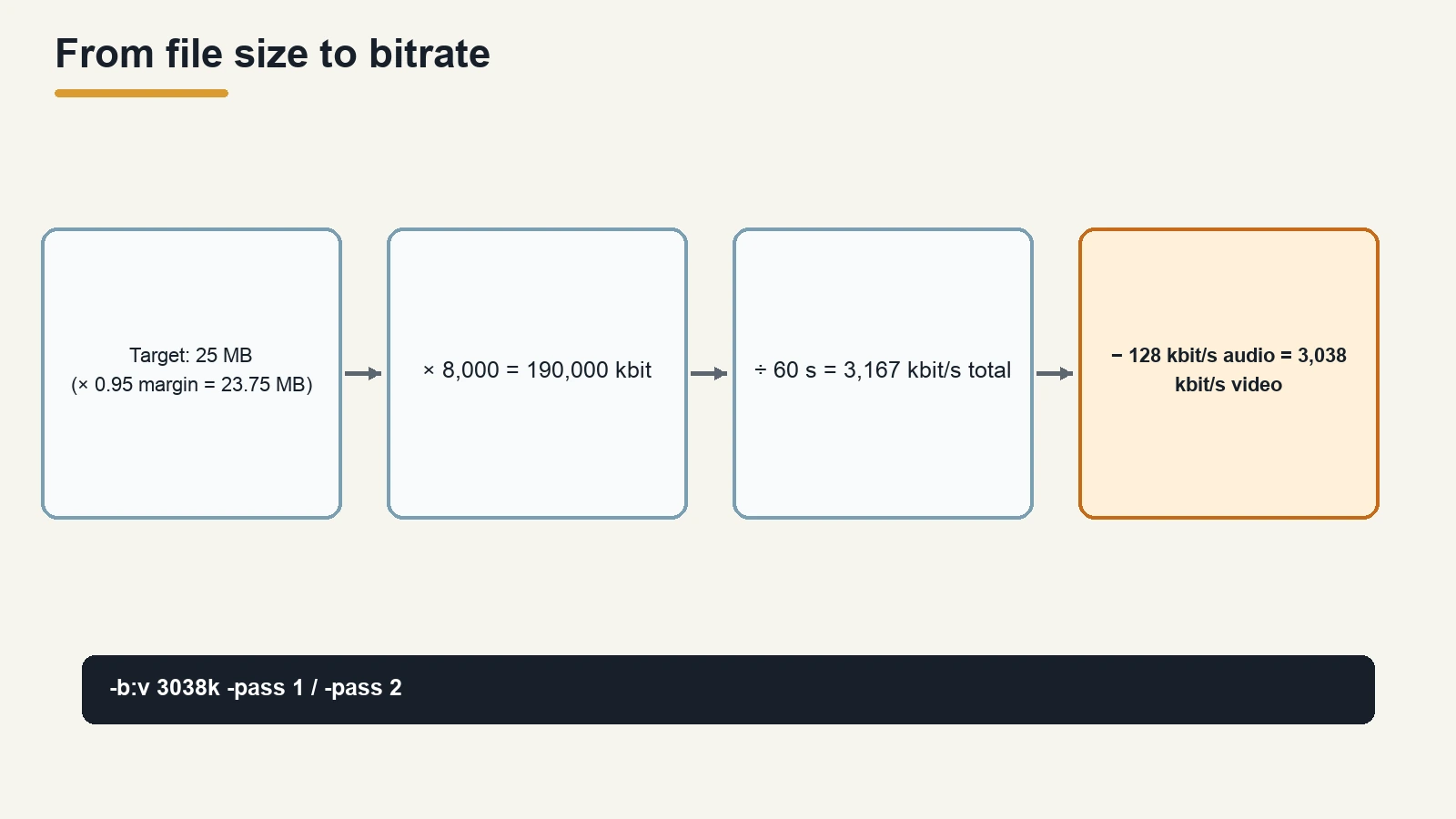
A file's size is roughly its bitrate multiplied by its duration. Turn that around and you get the bitrate you can afford:
total bitrate (kbit/s) = target size (MB) × 8,000 ÷ duration (seconds)
Then subtract the audio bitrate to get what's left for the video:
video bitrate = total bitrate − audio bitrate
Two notes on units. We use 1 MB = 1,000,000 bytes here, the same as our video file size calculator. And as FFmpeg's H.264 encoding guide puts it, "1 kBit is always 1000 bit", so multiply by 8,000 to go from megabytes to kilobits.
Example: a 60-second clip under 25 MB
- 25 MB × 8,000 = 200,000 kbit
- 200,000 ÷ 60 s = 3,333 kbit/s in total
- With 128 kbit/s audio: 3,333 − 128 = 3,205 kbit/s for the video
To find your clip's duration, use ffprobe:
ffprobe -v error -show_entries format=duration -of default=nw=1 input.mp4
Our test clip returned duration=60.000000.
Step 2: Encode in two passes
FFmpeg's H.264 guide recommends two-pass encoding when you're "targeting a specific output file size." In the first pass, FFmpeg analyses the video and writes a log file. In the second pass, according to the FFmpeg documentation, "that log file is used to generate the video at the exact requested bitrate."
On macOS or Linux:
ffmpeg -y -i input.mp4 -c:v libx264 -preset medium -b:v 3205k -pass 1 -an -f null /dev/null
ffmpeg -i input.mp4 -c:v libx264 -preset medium -b:v 3205k -pass 2 -c:a aac -b:a 128k output.mp4
What each part does:
-b:v 3205ksets the average video bitrate from Step 1.-pass 1/-pass 2select the pass. Both passes need the same video settings.-an -f null /dev/nullin pass 1 skips the audio and throws the video away; only the log file matters.-c:a aac -b:a 128kin pass 2 encodes the audio at the bitrate you subtracted.
On Windows, FFmpeg's guide says to use NUL instead of /dev/null.
Both commands exited with code 0 in our test. FFmpeg leaves log files named ffmpeg2pass-0.log and ffmpeg2pass-0.log.mbtree in the folder; you can delete them afterwards.
What we got: target vs actual size
Here's how the output compared with the target. We read every size with ffprobe (-show_entries format=size).
| Test | Target | Video bitrate | Actual size | Difference |
|---|---|---|---|---|
| Two-pass, no margin | 25,000,000 bytes | 3205k | 25,096,610 bytes | 96,610 bytes over (+0.39%) |
| Two-pass, 5% margin | 23,750,000 bytes | 3038k | 23,819,747 bytes | 0.29% over the reduced target, 4.7% under 25 MB |
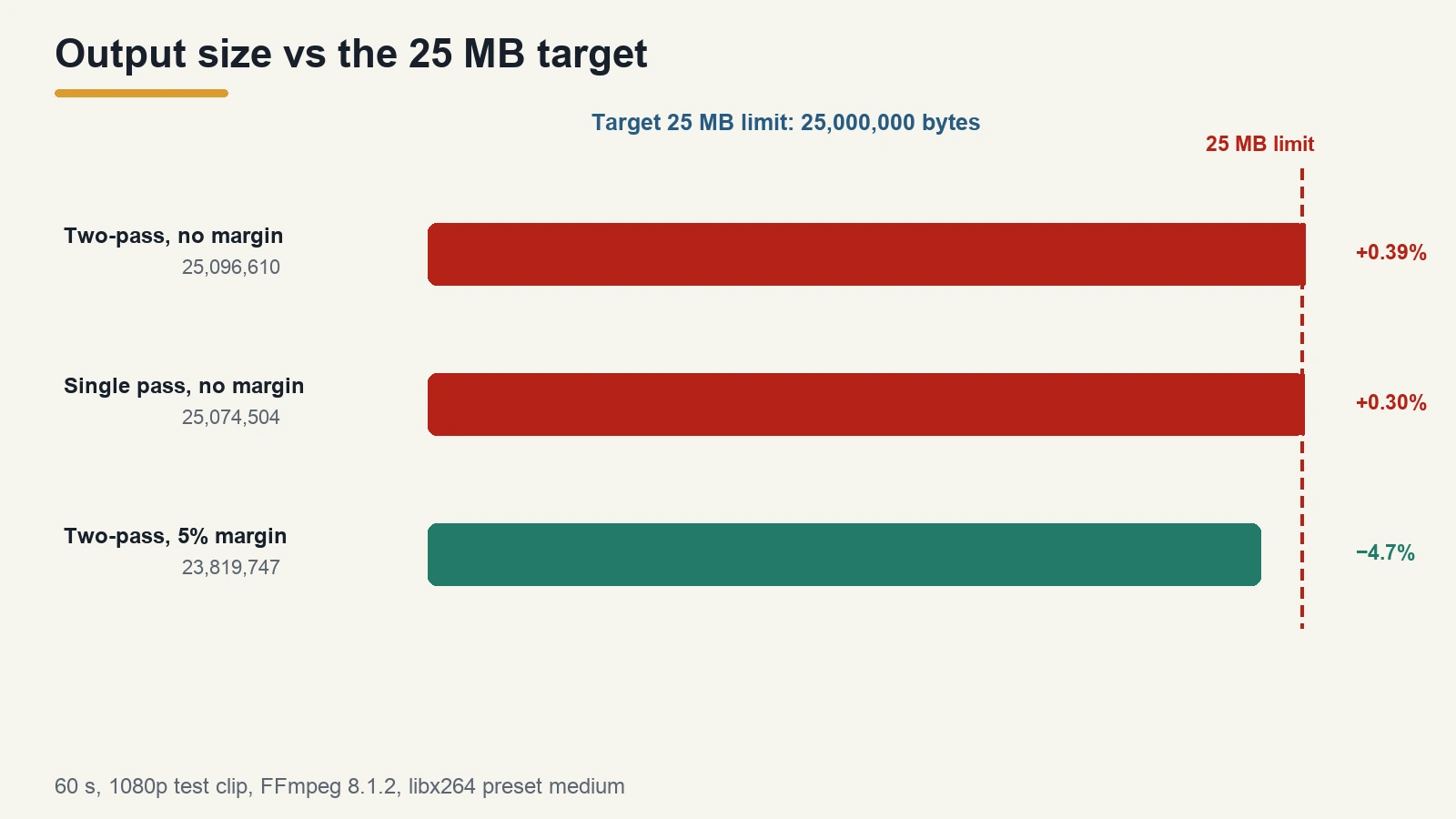
The first result is the one to remember: aiming exactly at the limit put the file over the limit. The video and audio streams landed almost exactly on their bitrates (ffprobe reported 3,209 kbit/s video and 128 kbit/s audio), but the file also contains the MP4 container's own data, and the result ran 0.39% over. That's small, but a limit is a limit.
Leave a margin
That's why it's worth aiming a little below the limit. We used 5%:
- 25 MB × 0.95 = 23.75 MB
- 23.75 × 8,000 ÷ 60 = 3,167 kbit/s total
- 3,167 − 128 = 3,038 kbit/s for the video
That run came out at 23,819,747 bytes, comfortably under 25 MB. A 5% margin worked for our clips; it isn't a guaranteed figure for every file, so always check the size of the result.
Does two-pass beat a single pass?
We also tried a single pass with only -b:v set:
ffmpeg -i input.mp4 -c:v libx264 -preset medium -b:v 3205k -c:a aac -b:a 128k onepass.mp4
On our first clip it landed at 25,074,504 bytes, also just over 25 MB. On a second clip whose first half was simple and second half was complex, single-pass at 3038k came to 23,986,801 bytes and two-pass came to 23,817,644 bytes. Both were under 25 MB.
So in our tests, both methods landed within about 1% of the bitrate we asked for. We measured picture quality with FFmpeg's SSIM filter on the second clip, and the two results were almost identical (0.9515 vs 0.9519). On these clips we can't show a clear win for either. Two-pass is still the method FFmpeg documents for hitting a size, because the first pass gives the encoder a picture of the whole video before it decides where to spend the bits. If you need to be sure, use two-pass, and check the result either way.
When the target is very small: lower the resolution
The lower the bitrate, the more the picture breaks up. If the bitrate you work out is low for your resolution, reducing the resolution can help. Our bitrate calculator shows typical bitrates by resolution if you need a reference.
Here's a 10 MB target for the same 60-second clip, with a 5% margin, 96 kbit/s audio and the video scaled to 720p:
- 10 × 0.95 × 8,000 ÷ 60 = 1,267 kbit/s total
- 1,267 − 96 = 1,171 kbit/s for the video
ffmpeg -y -i input.mp4 -vf scale=-2:720 -c:v libx264 -preset medium -b:v 1171k -pass 1 -an -f null /dev/null
ffmpeg -i input.mp4 -vf scale=-2:720 -c:v libx264 -preset medium -b:v 1171k -pass 2 -c:a aac -b:a 96k output-720p.mp4
scale=-2:720 sets the height to 720 and picks a width that keeps the shape (and is divisible by 2). The result was 1280 × 720, 60.01 seconds and 9,578,206 bytes, under 10 MB. For more on filters like this, see our FFmpeg filter guide.
Don't use -fs to "compress"
FFmpeg has an option called -fs that sounds like it should do this job. It doesn't. The documentation says: "No further chunk of bytes is written after the limit is exceeded." It cuts the file off; it doesn't make it smaller.
We tried it on our 60-second clip:
ffmpeg -i input.mp4 -c copy -fs 25000000 fs.mp4
The output was 25,300,220 bytes and only 4.67 seconds long. The rest of the video was simply missing. The documentation also warns that "The size of the output file is slightly more than the requested file size", which matched what we saw.
Check the result before you send it
Run ffprobe on the output to confirm the size, length and streams:
ffprobe -v error -show_entries format=duration,size -show_entries stream=codec_name,bit_rate -of default=nw=1 output.mp4
Check that size is under your limit and duration matches the original. Our guide to checking a video's bitrate, codec and frame rate with ffprobe explains the other fields.
If you'd rather control quality than size, CRF is usually the better choice. Our post on CRF vs bitrate explains when to use each.
Sources
| Source | URL | Checked |
|---|
FAQ
How do I compress a video to a specific size with FFmpeg?
Work out the video bitrate: target size in MB × 8,000 ÷ duration in seconds, minus the audio bitrate. Then run a two-pass encode with `-b:v` set to that number. Aim a few percent under the limit, and check the result with ffprobe.
How do I get a video under 25 MB?
For a 60-second clip with 128 kbit/s audio and a 5% margin, the video bitrate is about 3,038 kbit/s. In our test that produced a 23.8 MB file. For a longer clip, the bitrate goes down in proportion to the length.
Why is my output file bigger than the target?
The bitrate covers the video and audio streams, but the file also holds container data. In our test, aiming exactly at 25,000,000 bytes produced 25,096,610 bytes. Leave a margin.
What is two-pass encoding in FFmpeg?
FFmpeg runs through the video twice. The first pass records statistics in a log file; the second uses them to encode at the requested bitrate. FFmpeg's H.264 guide recommends it when you need a specific file size.
Can I use -fs to limit the file size?
Not to compress. `-fs` stops writing when the limit is reached, so you get a shorter video, not a smaller one. In our test it kept only 4.67 seconds of a 60-second clip.
Related tools and guides
- Pull the audio out as its own file: Audio Extractor Guide
- Understand the filters used here: FFmpeg Filter Guide
- Copy-ready export commands: FFmpeg Encoding Presets
- Check what your output really contains: Read a Video with ffprobe
- Convert the container first: Format Conversion Guide